
Visualizing checking results: what was checked, what passed, what did not
-
Is there a simple way to visualize three distinct groups of objects per checking rule - namely A) what are the objects that the rule actually took as an input, B) which of those did the rule pass and C) which did not?
The latter of course works, but when working with complex rulesets and gatekeepers it’s difficult to debug the rules when one is not certain if there’s a problem with the filtering of the rule (the rule does not check all the elements it should check) or the actual check itselfs.
I can simulate some of these with gatekeepers, but that creates quite a bit of complexity to the ruleset.
In my mind, for every check there should be an input group, and the two output groups (passed/not-passed) should encompass the whole input group.
-
Hi Ville, you can use the ‘Checked Components’ View for this. It’s available from the ‘Views’ pulldown menu in the Layout bar.
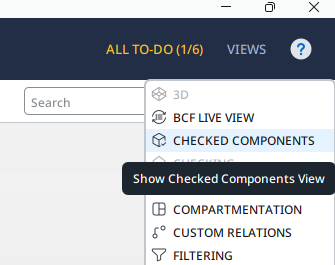
You use the ‘Checked Components’ View in combination with the ‘Checking’ View:- Perform a Model Check
- Select a Rule in the ‘Checking View’
- The ‘Checked Components’ View will list the components that were handled by the Rule.
- The components can by organised in various categories: ‘Checked Components’, ‘Passed Components’ & ‘Failed Components’
- But also: ‘Accepted’ , ‘Rejected’ & ‘Undefined’
- You can visualize the components in the list in the 3D View by selecting one, or multiple rows
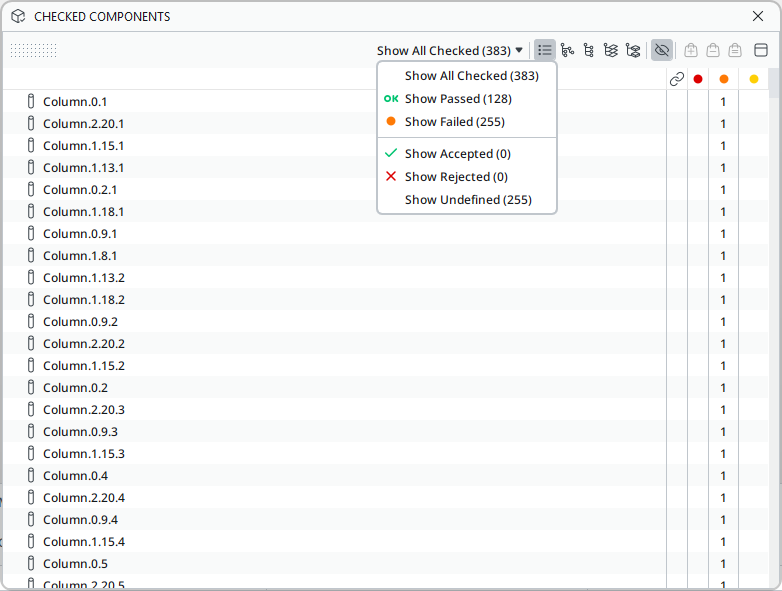
This View is indeed especially helpful for ‘debugging’ Gatekeeper Rules. It gives you insight into which components have been checked and which components are passed on from the Parent Rule to the Sub Rule.
Copyright © 2025 Solibri Inc. | Powered by NodeBB