
BCF Live insights and explanations
-
BCF Live insights and explanations
In 9.12.0 we introduce the new BCF Live Connector, which comes with its very own layout. The BCF Live connector brings users a new, simplified BCF Live view, as well as a Live Issue Details view. The connection itself is more stable than the previous connector, and live, meaning that all users working on the issue management server project continuously have access to the newest information. We have also implemented a Conflict Resolution dialogue, to handle the issue of two users overwriting each other’s data. In the case of mid-air collisions, Solibri users will be prompted which version of data they wish to keep.
The Live connection will also avoid large transfers of data, but rather handle transfers in small bundles to make synchronization of issues seamless.
Please check the FAQ page as well as the introduction video here:
http://youtube.com/watch?v=Cx4M6_gBzxE
Existing and new server projects
To achieve the best possible results when upgrading to BCF Live, and avoid problems with synchronization, it is recommended that:
New server projects: It is recommended that all new server projects are initially populated with issues using 9.12.0. This will ensure that links to checking results and local slides are saved properly. It is also highly recommended that all project participants would use the BCF Live Connector to avoid problems with synchronization, issue duplication, etc.
Existing server projects: If the server project has already been created and populated with an earlier version of Solibri, to achieve the best results, it is recommended to:
- Transfer the server project: Make sure the SMC file presentation/checking slides are up to date with a previous version of Solibri. Create a fresh, empty server project into which you can then import all issues from the Solibri SMC file using the BCF Live Connector in Solibri 9.12.0. This will ensure that links to checking results and local slides are properly saved, as the linking feature did not exist to the same extent before 9.12.0. Once the new server project has been created and populated, the old server project should be made redundant. All project participants should then continue with the BCF Live Connector and 9.12.0.
Or:
- Use only BCF Live View: Connect to the server project with 9.12.0, and work solely on the BCF Live view (which is possible even without the SMC file), accepting that links to checking results and local presentation issues will not work with issues originating from previous Solibri versions. Issues can still be updated and edited in BCF Live, however transferring and linking these to the older local issues is not supported.
Or:
- Simply continue working on that server project in a previous version of Solibri, and then once a new project is ready to begin, or once you are ready to transfer the project, switch to 9.12.0.
Getting started
Layouts and views
- BCF Live Connector has it’s very own layout, where you will find the BCF Live View as well as the Live Issue details view.
Connect to a server project:
- To connect to a project, simply turn on the BCF Live view, which opens up the server and project selection dialogue.
- After selecting a server and authenticating, select the project you wish to connect to and select Start synchronisation. Now, the BCF Live view begins to populate in batches of 5.
- The green check mark on the Sync status indicates that the issue is synchronised. Editing the issue will change the icon to the black synchronisation icon, which indicates that it will be synchronised in the next automatic sync (within 5 seconds). In case of an invalid issue (e.g. missing title), there is a Red Cross.
- The BCF Live view is easily customizable; from the top right corner you can choose which columns you wish to view. Columns also include Number, which is the Solibri issue number, as well as the Index, which is defined by the server.
- In the BCF Live view, it is possible to switch between an issues list, and viewpoint list from the top row icons.
Filtering:
- Filtering is dramatically improved with BCF Live. You can choose to filter upon initial connection, or update the filter settings at any moment when BCF Live is on. Some things to remember:
- In case you are working on an issue, and change the filter to exclude the issue in question, the issue will still remain on the BCF Live View list until you select another issue, at which point the filter will affect the original issue and it will disappear. The same is true for e.g. checking results, even if they should be excluded from the filter, they will show up when importing or adding them from the checking layout, and then disappear according to the filter once another issue is selected.
Editing issues:
- Note! Only server-defined values are accepted with BCF Live.
- To edit issues, simply select the issue in question from the BCF Live View and make the required changes using the Live Issue Details view. Changes are, by default, automatically synchronized.
- It is also possible to disable automatic synchronization in settings, under BCF Live Connector. With this feature disabled, each edited issue needs to be approved by selecting Mark as ready, after which the issue is added to the synchronization queue, and will be synchronized in the next interval (within 5 seconds).
- Any changes made on the server are automatically synchronised back to Solibri constantly.
- In the case that you are editing an issue which also gets edited on the server at the same time, a Conflict resolution dialogue pops up to allow the Solibri user to select which values they choose to keep.
Adding and importing issues in Solibri:
- New issues can be added directly to the BCF Live view by using the New issue feature.
- It is also possible to import selected or marked issues from a selected Solibri presentation using the Import feature. Please make sure to select or mark the issues and presentations beforehand.
- Importing local issues will cause the value conversion dialogue to pop-up.
- Local issues can be imported more than once, however please note that re-importing local issues will OVERWRITE the values of those issues in BCF Live.
- We suggest adopting a workflow to support the idea that once a local issue has been imported to a BCF Live project, editing would continue primarily on the server and in BCF Live Connector.
- Importing checking results slides directly to BCF Live is now supported. Checking results issues can be identified by the common checking triangle icon in the BCF Live view. The icon also works as a link to the Checking layout. Simply either:
- Create slides in your Checking layout (as you normally would), and then in BCF Live View, use the Import feature and select which results you wish to import. This will result in the value conversion dialogue popping up to map values.
OR:
- Connect to a server project in BCF Live, and then create slides from checking results directly into BCF Live with the added column in the Checking layout under Results view.
- Create slides in your Checking layout (as you normally would), and then in BCF Live View, use the Import feature and select which results you wish to import. This will result in the value conversion dialogue popping up to map values.
Ending the session:
- Once you are done working in your BCF Live project, simply end the session by turning the BCF Live View off. This will close the connection to the server.
- Turning off the BCF Live View will clear the synched issues from the list.
- In the case of unsynchronized issues, a pop-up dialogue shows up to inform you of this.
- Please remember!
- In case you start working on another model and project within the same Solibri session, please remember to close the previous BCF Live connection and connect to the correct project in BCF Live.
- Remove any unsynched issues before connecting to another project, unless you wish to transfer them to another project.
- Save your model! To retain links to checking results or local issues which are added to BCF Live, the model must be saved.
Known issues
Filtering
Currently, the following issues are known about filtering. Using unsupported filters will result in cancellation of the filter (and all issues to come through).
- Bimsync: Filtering Undefined, in addition to other values is not supported (however filtering Undefined values alone is).
- Aconex: Currently, filtering is not yet supported.
Multiple Conflict Resolution and value Conversion Dialogues
In case many changes have been made e.g. in local issues which are also on the server project after your previous connection, you may experience multiple Conflict Resolution Dialogues and Value Conversion Dialogs. These may overlap, and must be gone through one-by-one to accept which version of the information to keep. A fix for this issue is planned for 9.12.1.
-
@tonigyllenberg said in BCF Live insights and explanations:
We suggest adopting a workflow to support the idea that once a local issue has been imported to a BCF Live project, editing would continue primarily on the server and in BCF Live Connector.
First thx for this massive workflow improvement, however I did some “crash tests” to discover the weaknesses before we go live and I wanted to ask about the following involving BimCollab.
- Issues are imported in Solibri BCF-Life from presentations or checking results
- E.g. Status of an Issue is changed in Solibri
- While the session is still active the Status is changed on BimCollab side
- Sometimes/for some issues this change does not get recognized in BCF-Live
- Manually reseting BCF-Live brings up the pop-up but there is no Modification Date Value
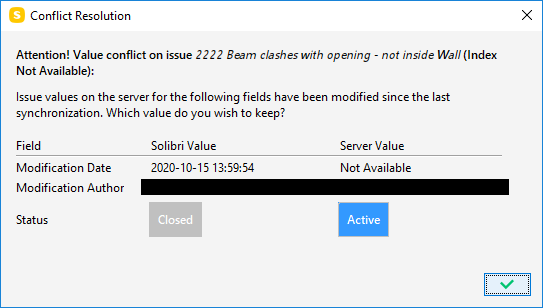
So I am not sure at the moment what is causing that not all issues are getting synced bidirectional and I cannot always reproduce it either, which worries me a bit tbh, but maybe you can tell me more about it? I think at the moment to avoid such confusions it is best to just turn off the auto-sync of BCF-Live?
UPDATE: Ok, I did some more tests and also I did a reset of all the settings to make sure that nothing is corrupt here. So far it seems to work but I will keep on with my try & error session to fully understand the behaviour before we take it live.
Nevertheless, as depicted in the screenshot above - Modification Date is never transmitted from BimCollab side. I guess the cause of this issue is on their server side?
UPDATE 2: Ok, nope it somehow still doese’t work on some issues with no clear logic behind it.
Example:
Creating 4 issues like describend above in BCF Live
Changing all 4 to Status = Resolved with BimCollab
BCF Life is syncing and 3 will get the new Status automativally, but 1 fails and still shows active@tonigyllenberg What is my mistake?
-
Ok, I think I have found a culprit as I noticed that always the same issues (111 & 222) were having problems.
As you can see the first two elements in BCF Live are not having an entry for modification date here and they almost never updated when something was changed as described above.
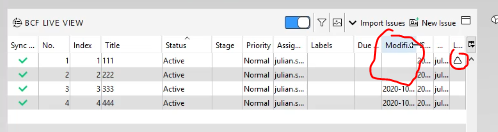
However it seems like that the one thing 111 & 222 have in common is that they have a viewport created by Solibri
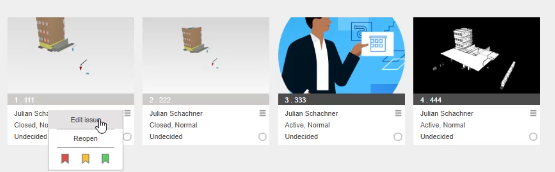
333 and 444 have preview pictures set manually or via the BimCollab Addon in Archciad. And they work fine.
So I made an educated guess and exchanged the preview pic from 111 and 222 manually on Bimcollab to test it out if it would make a difference as well.
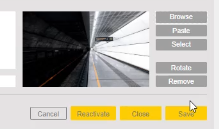
Well, suddenly not only the modification date is poping up but the sync is now also working in an instant when I change something on bimcollab side.
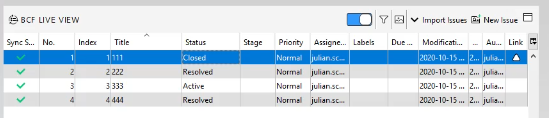
I know there have already been issues with the preview pictures and BimCollab during the beta, but it seems like that it is still not running totally smooth and exchanging all pictures manually is not really an option …
-
@JSN said in BCF Live insights and explanations:
Ok, I think I have found a culprit as I noticed that always the same issues (111 & 222) were having problems.
As you can see the first two elements in BCF Live are not having an entry for modification date here and they almost never updated when something was changed as described above.
However it seems like that the one thing 111 & 222 have in common is that they have a viewport created by Solibri
333 and 444 have preview pictures set manually or via the BimCollab Addon in Archciad. And they work fine.
So I made an educated guess and exchanged the preview pic from 111 and 222 manually on Bimcollab to test it out if it would make a difference as well.
Well, suddenly not only the modification date is poping up but the sync is now also working in an instant when I change something on bimcollab side.
I know there have already been issues with the preview pictures and BimCollab during the beta, but it seems like that it is still not running totally smooth and exchanging all pictures manually is not really an option …
Hi @JSN
Thanks for your investigation. We are already aware of this bug and we have informed BIMcollab regarding the bug.
This bug is only reproducible if an issue does not have any Comment. As you have seen that the modification date is empty for the issues where there is no comment and the issues are modified in the server side.
Good news is BIMcollab has already implemented the fix for this and this will be available with their next release. No Solibri release is required in this case.

-
Hello again @tonigyllenberg
I am still testing the new Solibri BCF Live Connection and it seems that there are some more open questions …
I just imported some issues from the communication tab into BCF Live and I added a comment (just to make them sync properly due to the above mentioned problem).
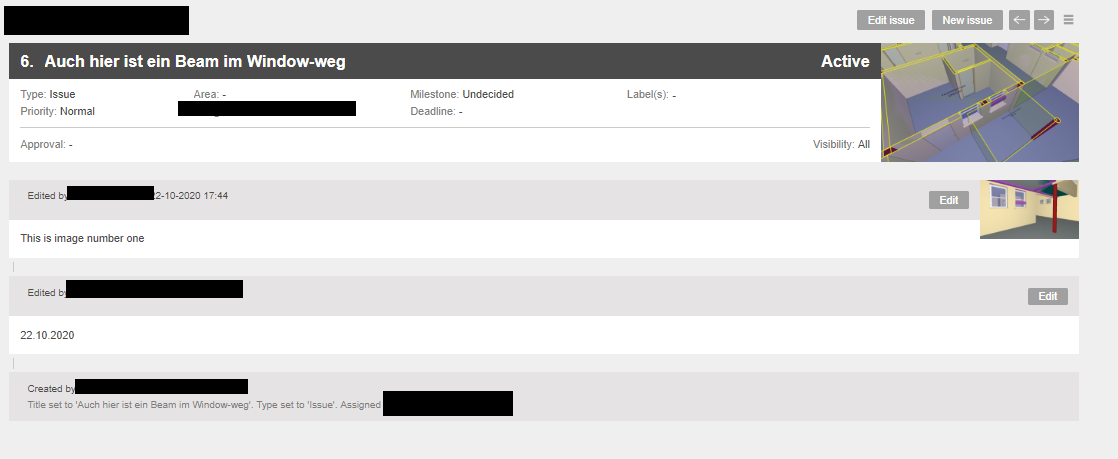
However it seems like when there is an issue with multiple images only one of them is syncronised with the server - or at least I cannot see them. So I am not able to see more than one image in BIMcollab if I do not comment each picture individually. So this again might be a problem of BIMcollab, but are you aware or what is the reason for this behaviour.
So I do not get any errors at all and this bothers me actually the most because this behaviour is actually worse than if it would not work at all. In the end I would have to check them all manually again … people will start writing e-mails with issues again if this is not working properly.
Attached Images:
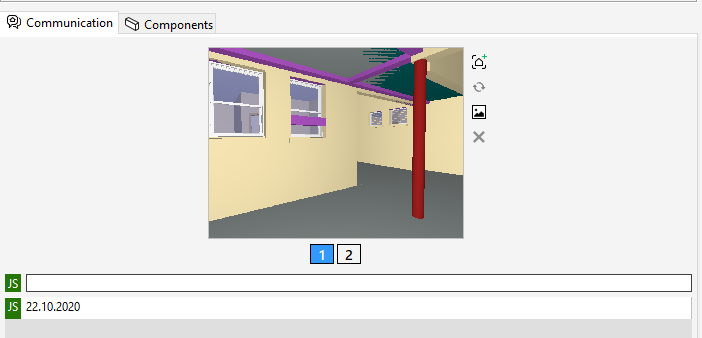
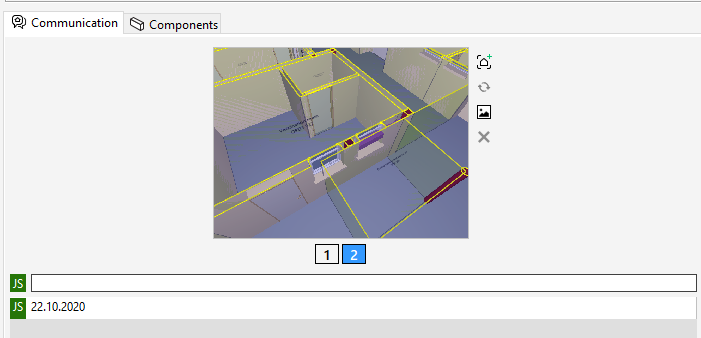
1| Issue in Solibri with two images (which have been imported from a Communication)
2| That’s how it appears on the server - so there is just the last image taken as preview and nothing else.
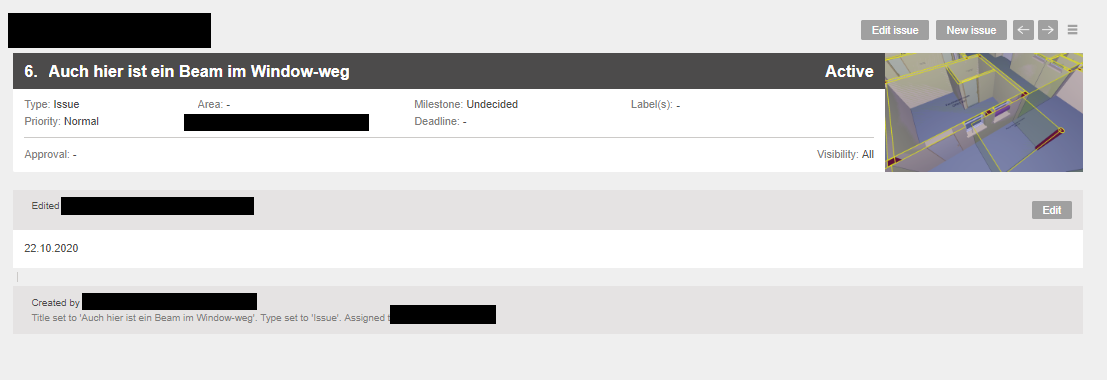
3| That’ how it looks in the BCF Manager - note my comment has no image attached.
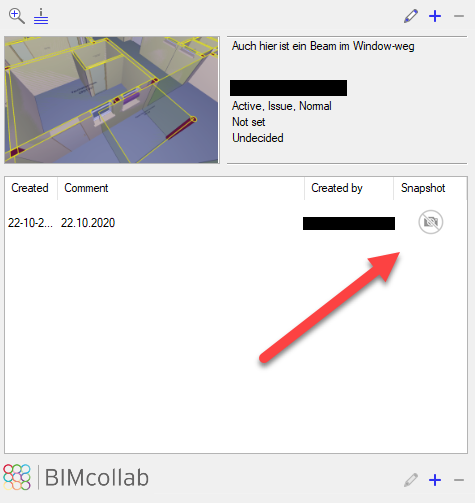
4| That’s what happens when I comment in BCF live the second image … it pops up - if there are more images they will still not be visible.
And btw. it seems also that when I add a total new slides to the issue in BCF live - that they are not poping up until I make a text comment. So what is the advise here? Commenting each single image?
-
@JSN said in BCF Live insights and explanations:
Hello again @tonigyllenberg
I am still testing the new Solibri BCF Live Connection and it seems that there are some more open questions …
I just imported some issues from the communication tab into BCF Live and I added a comment (just to make them sync properly due to the above mentioned problem).
However it seems like when there is an issue with multiple images only one of them is syncronised with the server - or at least I cannot see them. So I am not able to see more than one image in BIMcollab if I do not comment each picture individually. So this again might be a problem of BIMcollab, but are you aware or what is the reason for this behaviour.
So I do not get any errors at all and this bothers me actually the most because this behaviour is actually worse than if it would not work at all. In the end I would have to check them all manually again … people will start writing e-mails with issues again if this is not working properly.
Attached Images:
1| Issue in Solibri with two images (which have been imported from a Communication)
2| That’s how it appears on the server - so there is just the last image taken as preview and nothing else.
3| That’ how it looks in the BCF Manager - note my comment has no image attached.
4| That’s what happens when I comment in BCF live the second image … it pops up - if there are more images they will still not be visible.
And btw. it seems also that when I add a total new slides to the issue in BCF live - that they are not poping up until I make a text comment. So what is the advise here? Commenting each single image?
Hi @JSN,
We have noticed the similar behaviour. It might be the default behaviour of BIMcollab. Solibri has asked for feedback from BIMcollab. We will inform you as soon as we get details from them.
Thanks
-
@Noushed said in BCF Live insights and explanations:
Hi @JSN,
We have noticed the similar behaviour. It might be the default behaviour of BIMcollab. Solibri has asked for feedback from BIMcollab. We will inform you as soon as we get details from them.
ThanksThx for your fast reply. Actually I really had the opionion that this was working with the old connector - but as a new day beginns I am not totally sure now. However, it would indeed be good to have a statement from BIMcollab about this. In the meanwhile there simply had to be added some text to each of the snapshots - annoying but at least there is a workaround.
However, there is another thing I do not fully understand.
How is the snapshot selected which is getting BIMcollabs preview picture?Example:
A new Slide is created with the following three snapshots 1,2 and 3.
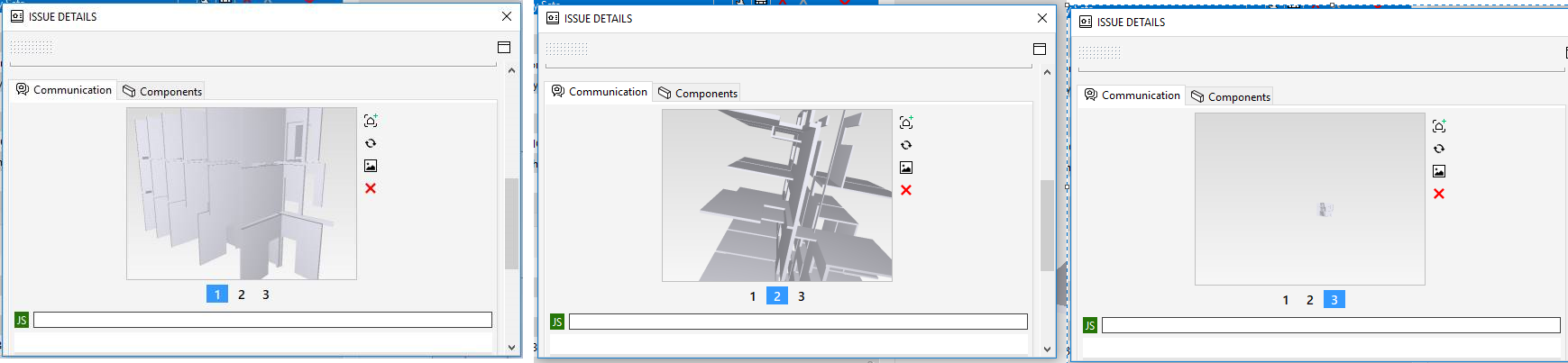
So, which slide is taken for BimCollab?
As you can see it is in most cases it seems to be the very last snapshot taken => here = #3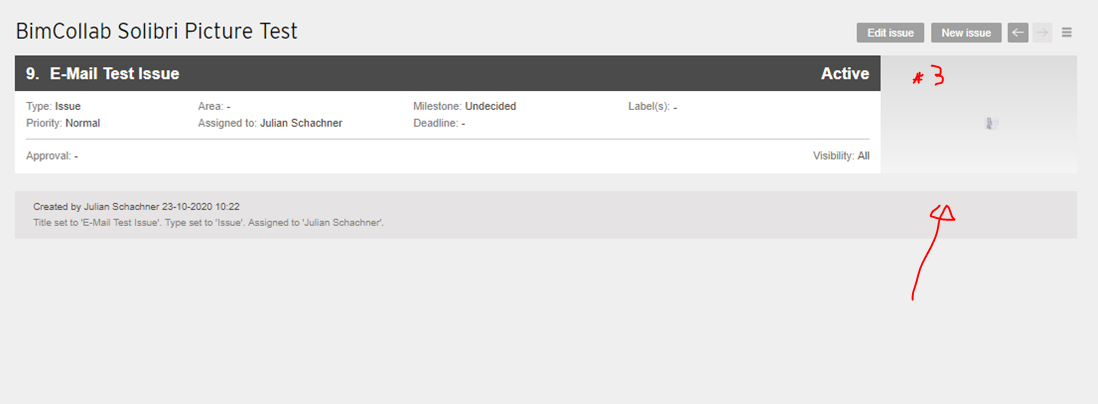
Well, but then on the next Sync iteration: Solibri Changes the Order of the snapshots …
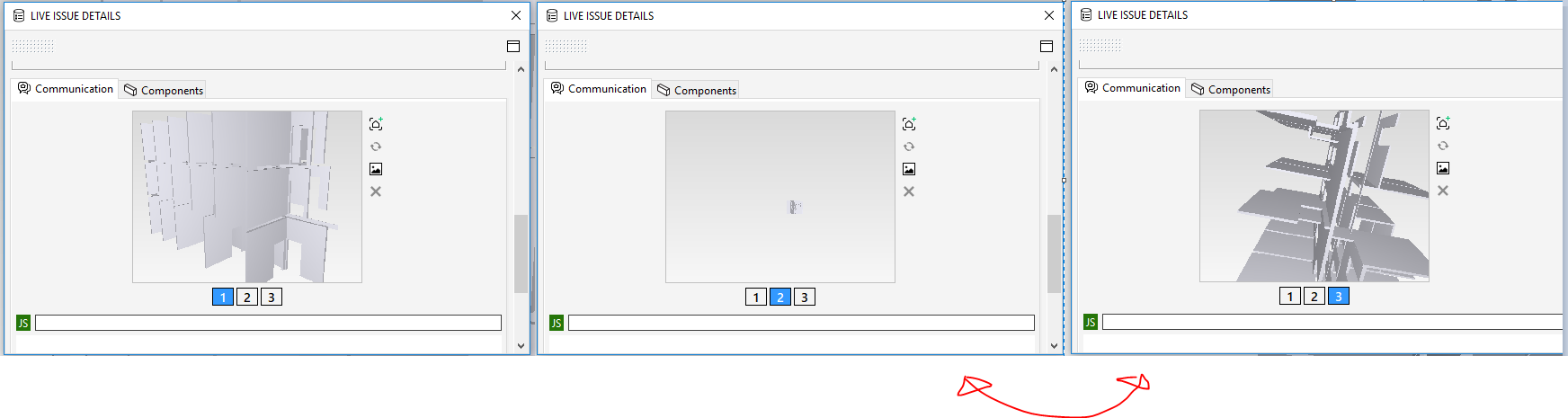
Ok, so it is now the original 1-3-2 order from above …
Nota bene:
#1 is still the Preview Picture in Solibri
#2 is it in BimCollab and now it also became immutable.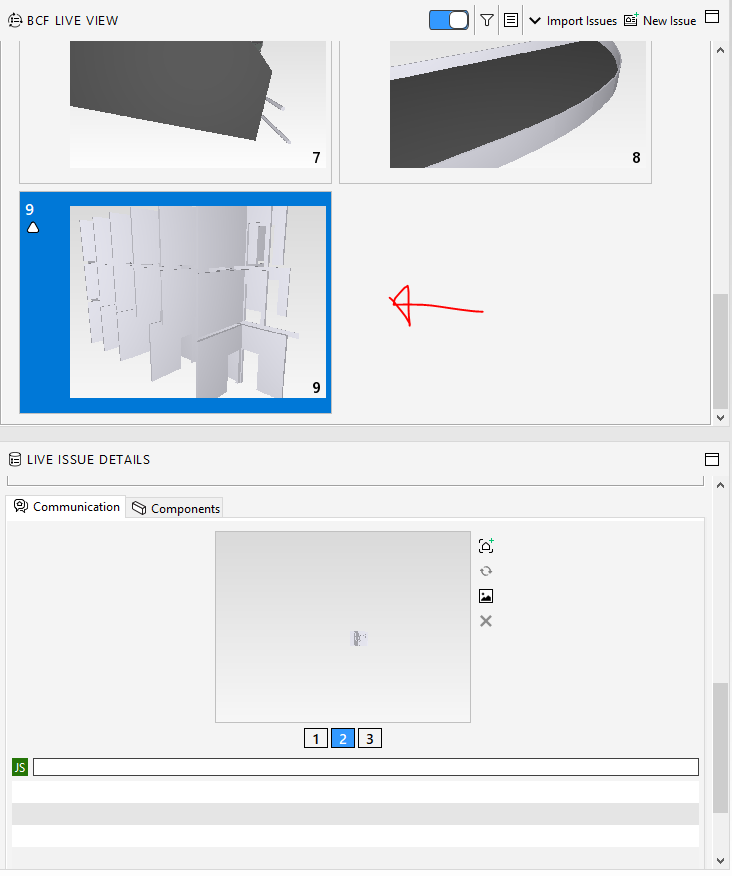
The only logic thing here is, that even after a BCF Live re-connect in Solibri – the snapshots persist and the appearance is like in the previous screenshot.
Not a huger matter, but still, trying to explain this behaviour to other users is really like ….

I know this probably mainly a server issue - but as I said what bothers me most is that you are just not getting informed about
- What is really synced (snapshots) and which are not - you would have to check them manually
- Which picture is taken as a preview picture
On projects with a huge issue count this is very dangerous and people tend to loose faith rather quick on such things when they believe they are loosing control because they have the feeling that the software is doing what it wants and there is no logic traceback.
-
Hello @JSN,
After a quick consultation with @Paul-Deckers from BIMcollab, the behaviour regarding viewpoints needing comments is indeed default for BIMcollab. In all of BIMcollab’s tools, viewpoints are always referenced by a comment, and the tools expect a comment for each viewpoint.
The good news is that these “floating” viewpoints without comments are not lost in any case; they are stored and can be either commented in Solibri, or attached to a comment in the BIMcollab webapp. So for this case, in order to avoid the problem from the beginning, the solution at the moment is to make sure all viewpoints have at least one comment.
Regarding the preview picture, we have been in contact with BIMcollab for some more details and will fill you in as soon as we have more information.
Kind regards,
Toni on behalf of the Solibri team -
@tonigyllenberg said in BCF Live insights and explanations:
Regarding the preview picture, we have been in contact with BIMcollab for some more details and will fill you in as soon as we have more information.
I appreciate your efforts.
-
Edit: Added some more details regarding existing and new server projects to the original post.
-
As @tonigyllenberg wrote …
After a quick consultation with @Paul-Deckers from BIMcollab, the behaviour regarding viewpoints needing comments is indeed default for BIMcollab. In all of BIMcollab’s tools, viewpoints are always referenced by a comment, and the tools expect a comment for each viewpoint.
… I am wondering if this will ever change in the future as it happens still more than it should that vieports are “floating” and “get lost” in BimCollab because the mandatory comment has been forgotten to add, or it disappared because it was just created right in the moment where the live sync is performed.
-
@tonigyllenberg said in BCF Live insights and explanations:
Filtering
Currently, the following issues are known about filtering. Using unsupported filters will result in cancellation of the filter (and all issues to come through).Bimsync: Filtering Undefined, in addition to other values is not supported (however filtering Undefined values alone is).
Aconex: Currently, filtering is not yet supported.Hi,
how about the filtering with Dalux? It seems to works sometimes, sometimes not… this is quite annoying. I wish I could filter the list in Solibri.



Copyright © 2025 Solibri Inc. | Powered by NodeBB