
Visability of PFV/Opening Elements
-
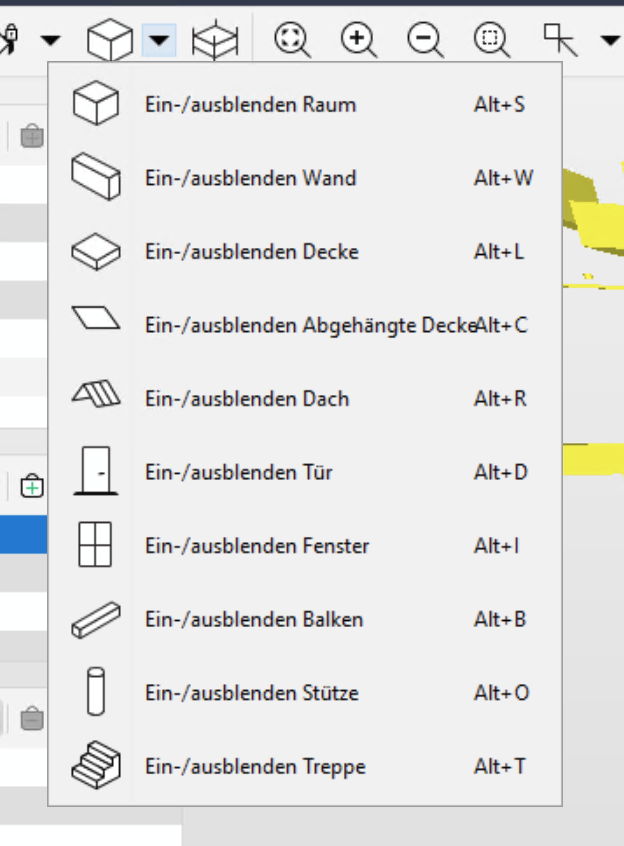
Hi, is there actually a way to highlight the provision for voids?
It seems like that they are not really getting visible with (nested) classifications or within rule filters.
I don’t want so see them all the time, but when I do it is always a pain.The most reliable way at the moment is to use ITOs but opening elements are really shy and once you click on one of them to see their information, they dissappear again.
So if there is a better way than using classifications (if they work) or tinkering around with ITOs, let me know. In the meantime I rise the question why it is no possible e.g. via a shortcut or the menu?
-
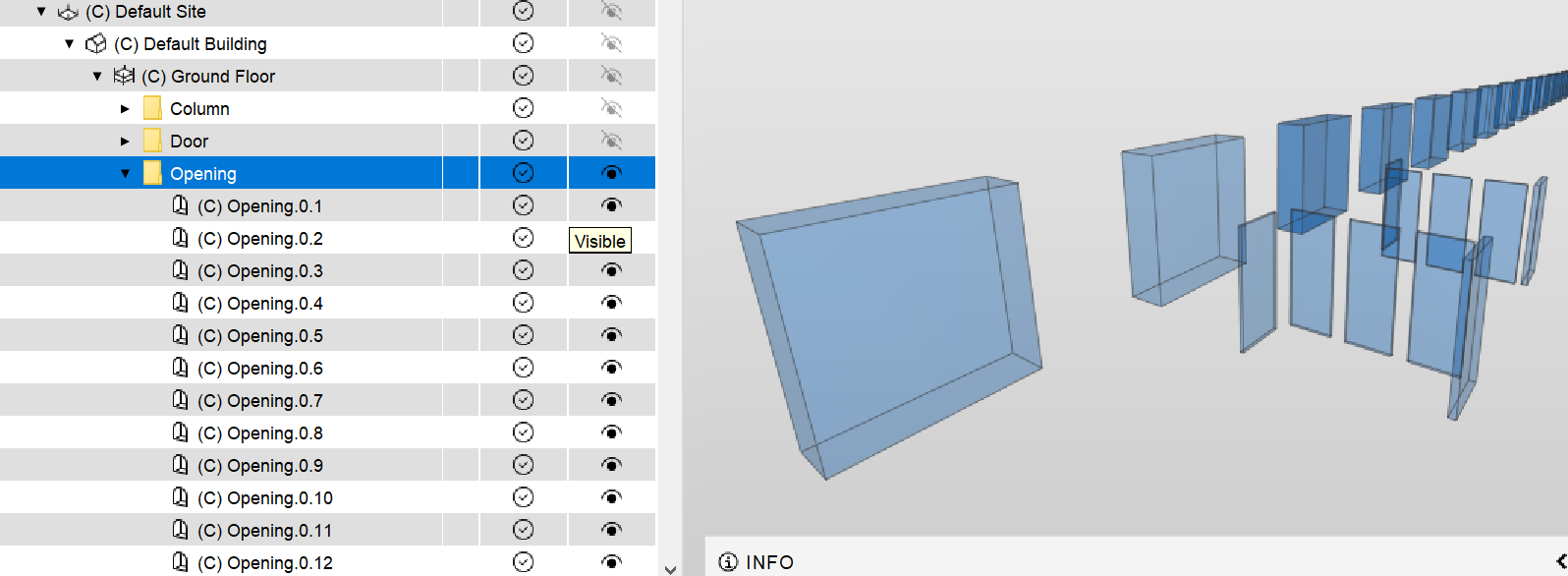
Hi. At least in the upcoming version this will be possible via the model tree:
-
Hi JSN.
When I want to view the openings/voids, I’ll either use the filtering view or create a classification.With the filter option;
Open the filtering view and assign the openings (add other filters if its for a particular model) and set them to the selection basket (=).
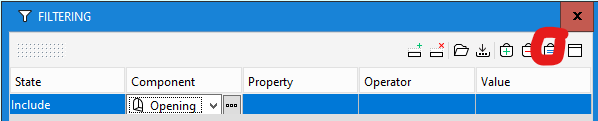
Once ‘selected’ I’ll use the Paint Bucket to make them visible and assign a transparency if needed.
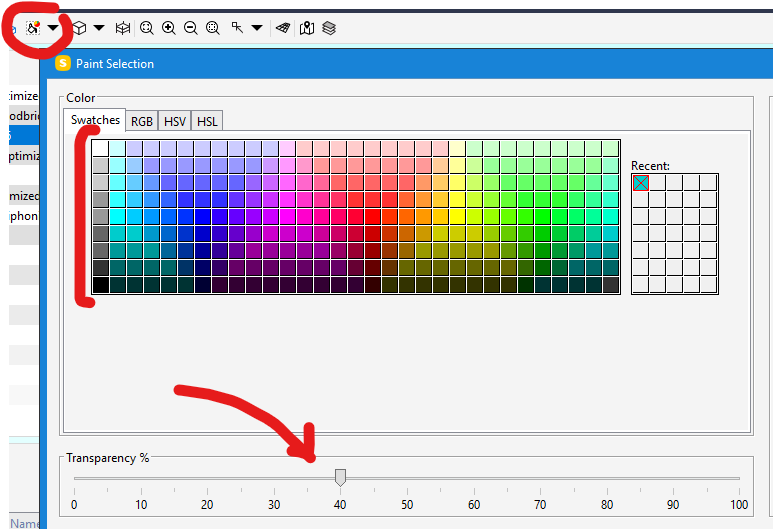
Once you’ve finished the review. Just remove paint from the components to tidy the view.Classification Option;
Create a new (or add to another) classification and assign the colour on the ‘settings’ tab. This would then allow you to visualise openings. To ‘hide’ them again, just switch them back to Component Color.
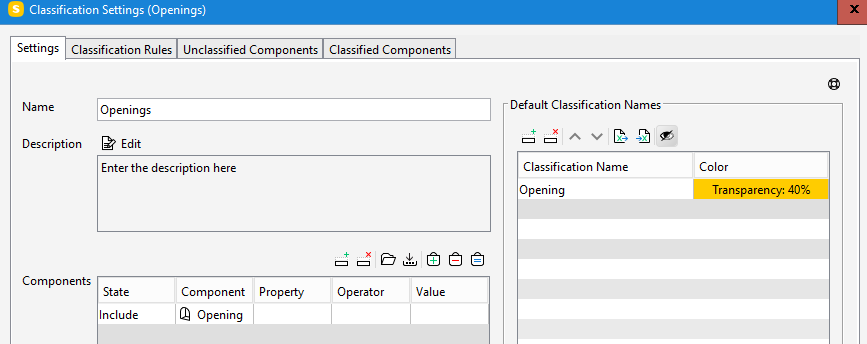
Hopefully this is of use and I’ve understood your question correctly.
-
Button for showing openings is included in the latest version Solibri 9.13.3
-
 E Eric marked this topic as a question on
-
E Eric has marked this topic as solved on
-
 M Matti unlocked this topic on


Copyright © 2025 Solibri Inc. | Powered by NodeBB