
Why is there no "not accepted values" rule?
-
Whilst checking various models I have noticed that a lot of BIM software have standard values (e.g <empty>, <not defined>, [not specified], [text] etc) for properties that aren’t defined. This makes solibri rules such as #203 pointless as they only check whether a value exists, not whether the value is actually specified.
It would be useful to have a rule of not acceptable values, the opposite of #9 maybe.I can achieve something that sort of works by a convuluted method using #203 as a gatekeeper - checked components must have for defined “psetx” and “propertyx” a value, if it passes then again #203 checked components are filtered by Psetx.propertyx is “one of” (not accepted values) and property sets with “Psetx” and “propertyx” “must not exist”. This method is bit fiddely and doesn’t always work.
If anyone could suggest a better method to check for these standard values I would be grateful or maybe @Solibrians it’s time to add a new rule to the library! -
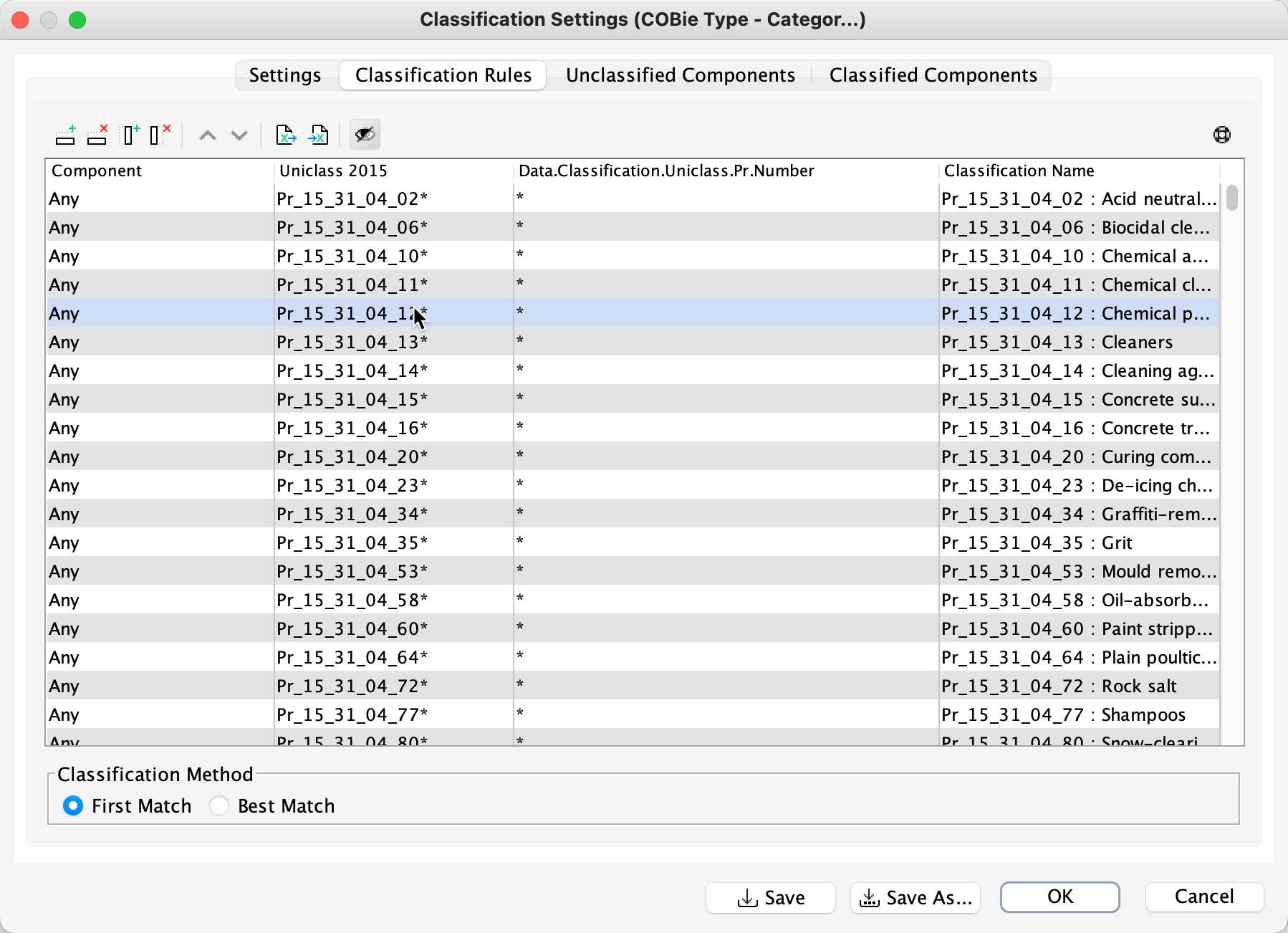
You could just add the list of values (enumerations) to a classification in the column that points to the locations you have specified i.e. psetx. This way the classification checks that the components that you are checking have the right value in that property. If it doesn’t exist or match the criterial set then it will be undefined.
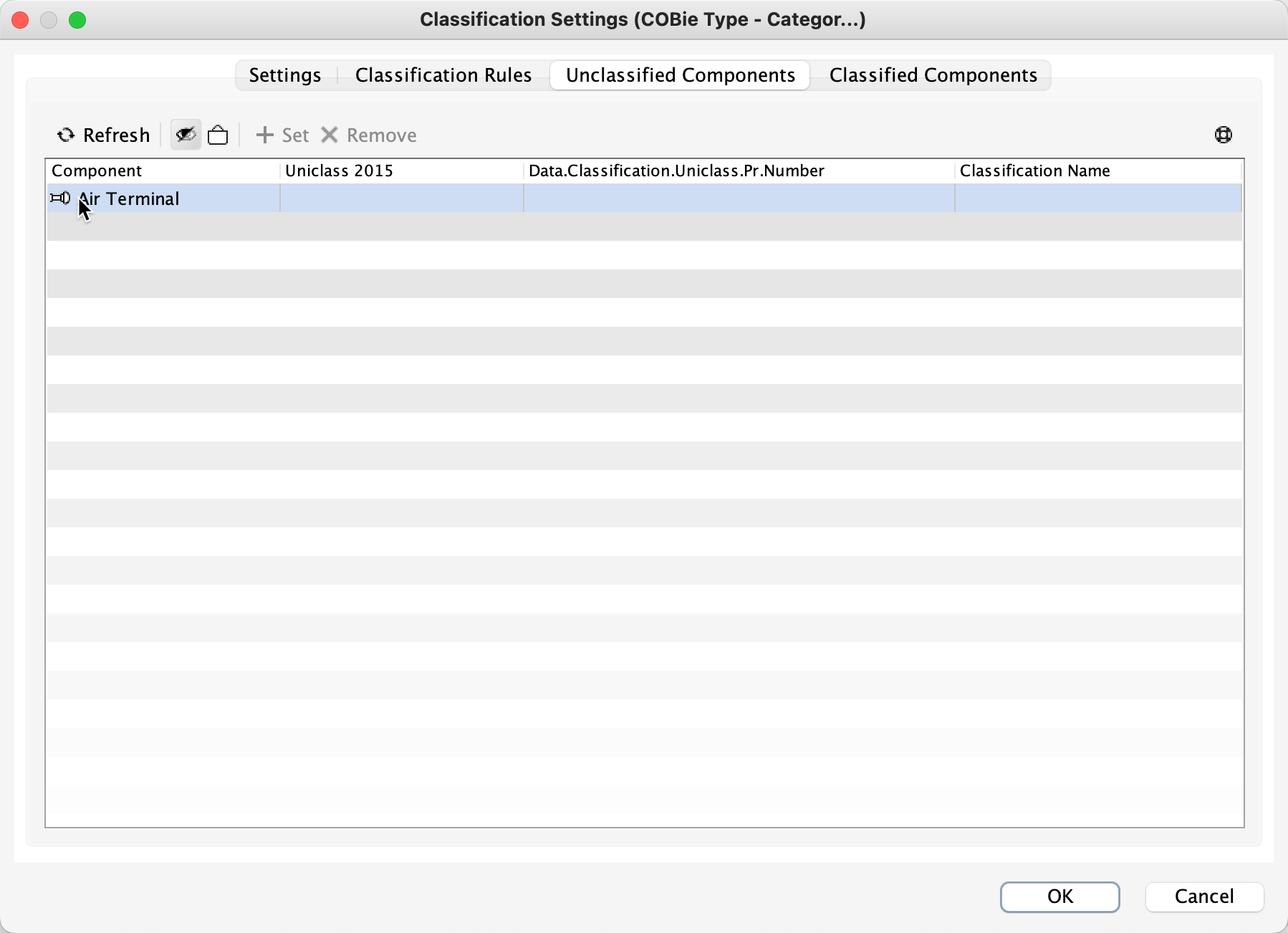
The Unclassified tab shows the items that are not classified and their values for that field.
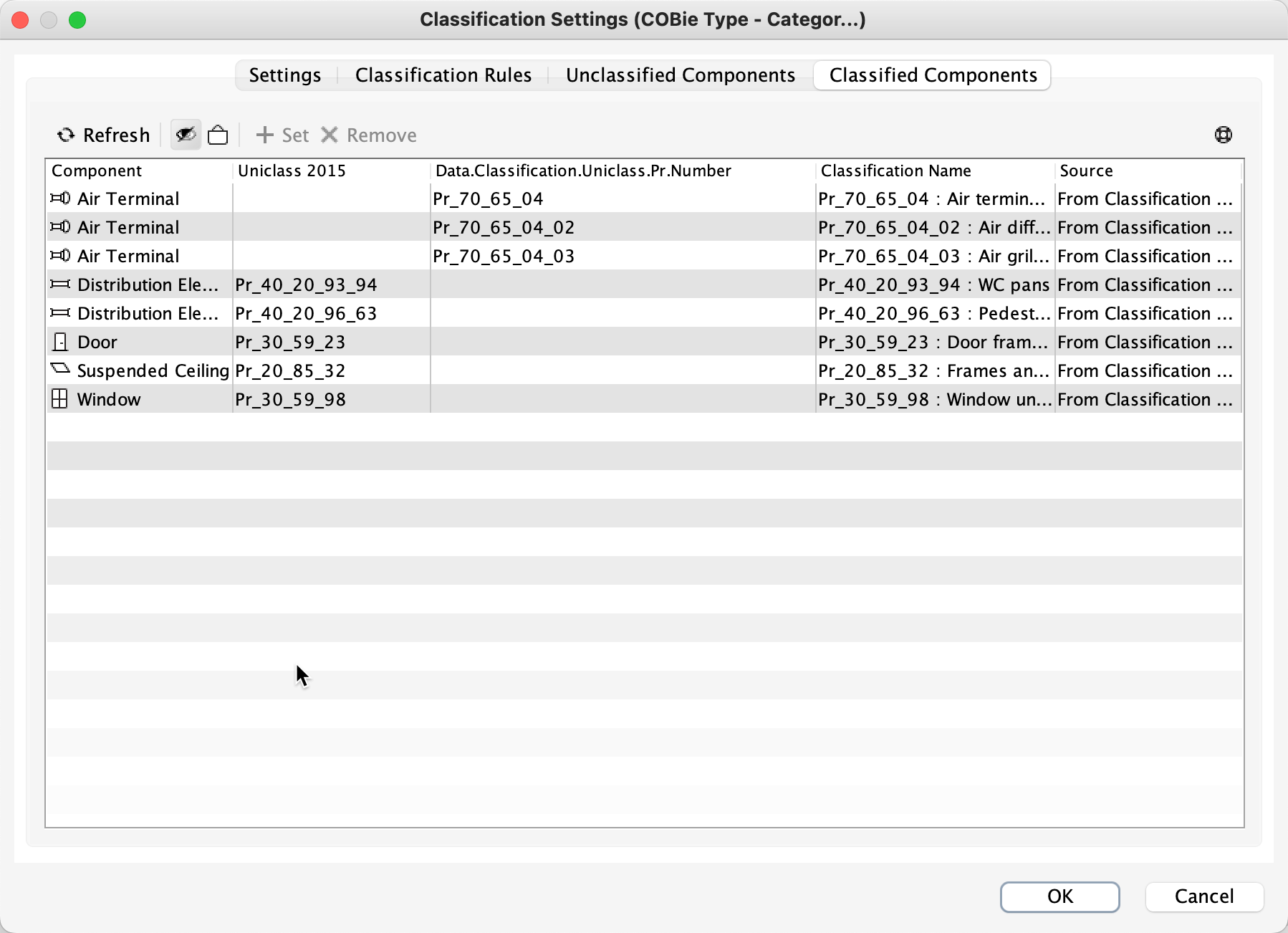
The Classified tab shows the sucessfull classifcations i.e. the component with a matching value.
You can then follow this up with a rule #230 Property Template with Component filters that checks the classification.
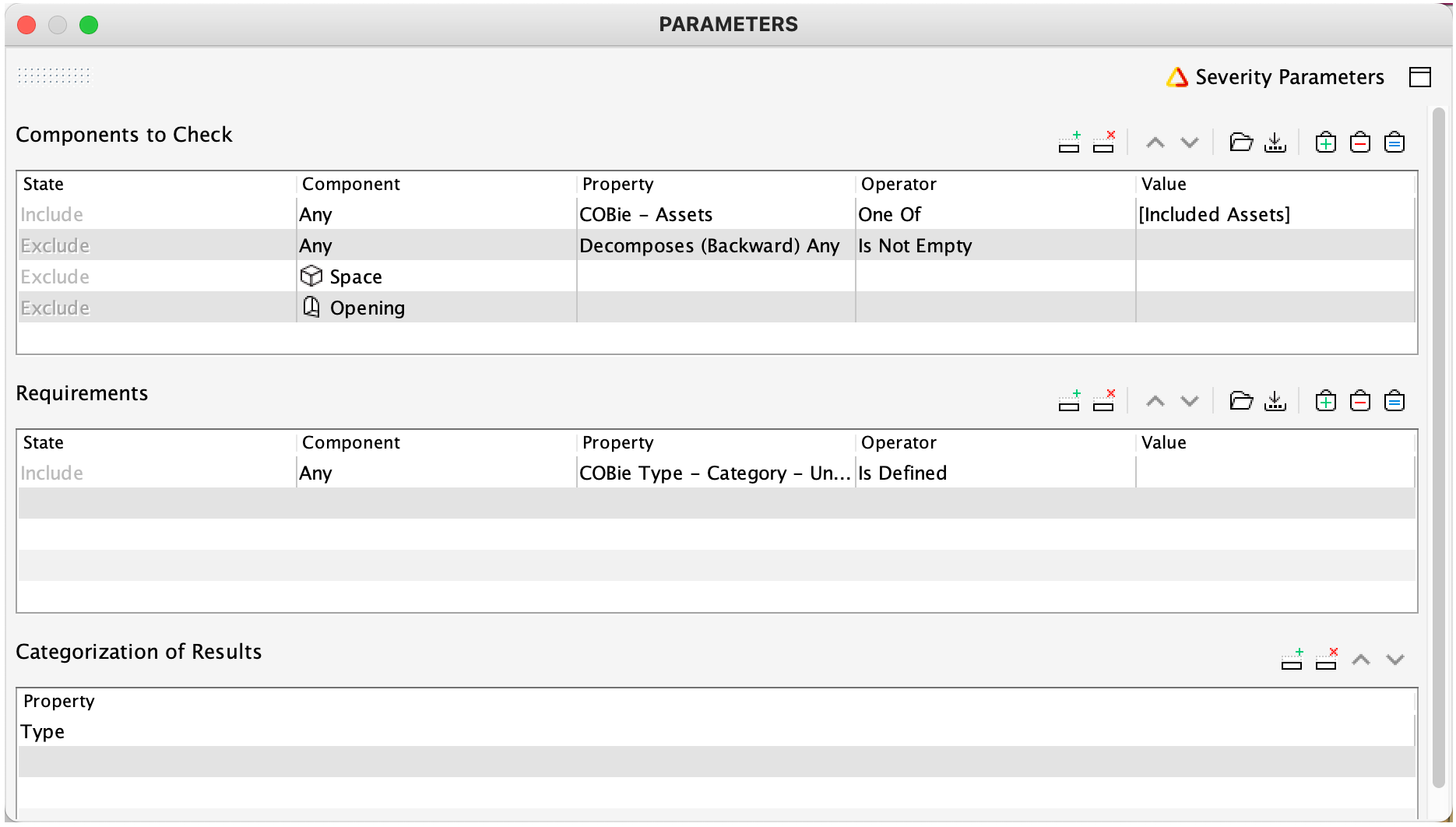
In this case checking the components that are defined in the COBie Assets filter and then the classification to check for Uniclass values.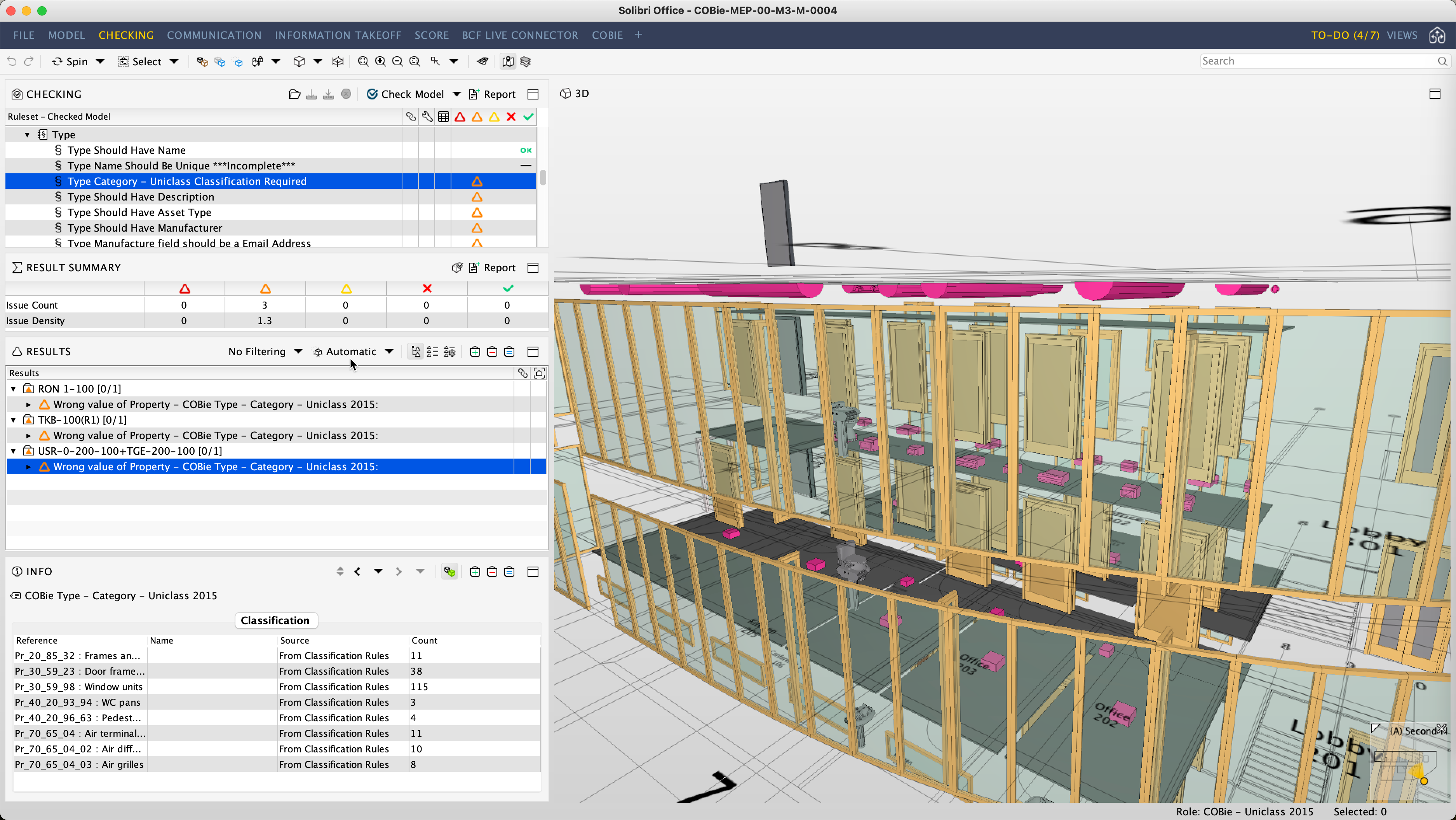
This method has the benefit of being able to import your required values to the classification and also extend its criteria if required using additional columns in the classification.
You could add another row into the requirements for the rule #230 that checked the particular field or keep this a separate rule. This would then also indicate components that did not have the value i.e. no psetx along with the ones that are not classified.
This is how we work with the Uniclass values in the COBie Extension.
Copyright © 2025 Solibri Inc. | Powered by NodeBB