
SAP integration setup
-
Connecting to SAP
SAP integration is available from Solibri 25.6.0. In order to connect to and use SAP integration, a configuration file is needed. This configuration file needs to be provided by the SAP admin in each organization.
This is an example file:
{
	"name": "SAP",
	"baseUrl": "https://copin-api.cfapps.eu10.hana.ondemand.com/",
	"authorizationUrl": "https://my-sub-domain.authentication.eu10.hana.ondemand.com/oauth/authorize",
	"tokenUrl": "https://my-sub-domain.authentication.eu10.hana.ondemand.com/oauth/token",
	"refreshTokenUrl": "https://my-sub-domain.authentication.eu10.hana.ondemand.com/oauth/token",
	"clientId": "my client id",
	"clientSecret": "my client secret"
}
The baseUrl in the config file is equal to the service/application URL in SAP.
The configuration file is selected in the Solibri UI:
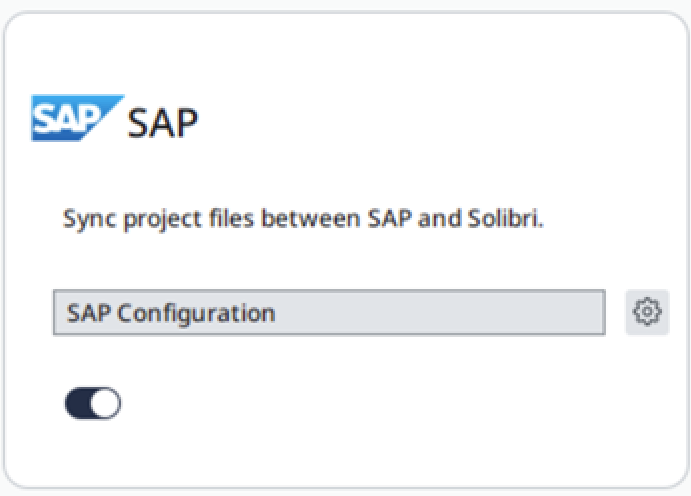
Once the configuration file is loaded, authentication will commence in the same fashion as any other integration within Solibri by turning the integration on. As an important note, the Solibri SAP client uses OAuth Authorization Code Grant to obtain access token. The redirect URL needs to be setup when configuring access for Solibri. The default redirect URL is: http://localhost:10556
More information about setting up a service instance is available here.
VM Options for SAP Integration
These changes can be made in the vmoptions file located in the program files folder of Solibri (C:\Program Files\Solibri\SOLIBRI\Solibri.vmoptions).
This option sets the frequency to check for SAP file updates. Default value is set to 5 minutes (if no value is provided at runtime).
-DSAP-update-interval-ms=300000This option sets the SAP callback server port. The server is OAuth2 redirect endpoint for SAP integration.
-DSAP-callback-server-port=10556The company admin can use these options to disable the SAP integration that are not allowed to be used in the company.
-DSAP.enabled=false -
 T tonigyllenberg pinned this topic on
Copyright © 2025 Solibri Inc. | Powered by NodeBB