
Autodesk Forma project setup tips
-
In order to make sure your Forma issues sync correctly with Solibri, please follow the guide below:
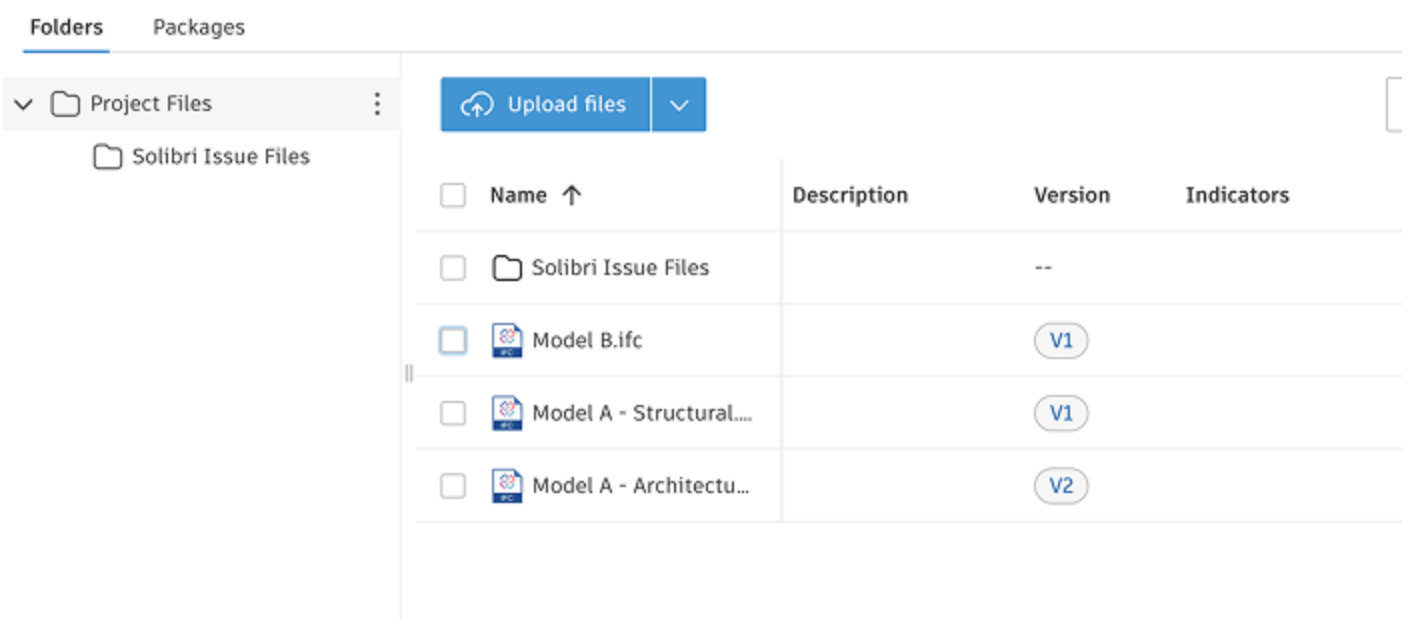
- Project setup: The Forma project must be setup to contain the required Solibri folder, as well as the Custom fields. These fields also need to mapped to the issue types in Forma. Find out more here.
- Component count: To keep the connection performant, in case there are more than 5000 components in an issue, the view will be saved without any isolation or other view related modifications. I.e. everything will be visible. Workaround: Make sure your views are zoomed in enough to keep the component count down.
- Title and Description character limits: Forma has a limit of 100 characters in the title, and 1000 in the description. Surpassing these will trigger a synch error, which can be resolved by reducing the character counts. Unfortunately there is no meaningful messaging available through the Autodesk API at the moment to inform users of this, so it is simply something that needs to be kept in mind.
- Automatic pushpins: Solibri creates pushpin locations based on camera angles. I.e. we shoot a ray to wherever the camera is pointing. This means that in some cases, the actual pushpin location may not be exactly where the user intended it to be. And in case the camera angle does not end up meeting any component, the viewpoint will not be stored.
- Model coordination selection: In case you’re utilizing model coordination views, upon connection in Solibri, make sure to select the correct model coordination view to ensure that issues get synched to the right destination.
- Project setup: The Forma project must be setup to contain the required Solibri folder, as well as the Custom fields. These fields also need to mapped to the issue types in Forma. Find out more here.

Copyright © 2025 Solibri Inc. | Powered by NodeBB