
Import Excel Worksheet - Rule#203
-
@JSN I did some tests with an excel worksheet formatted as shown below … but I can’t get the desired result.
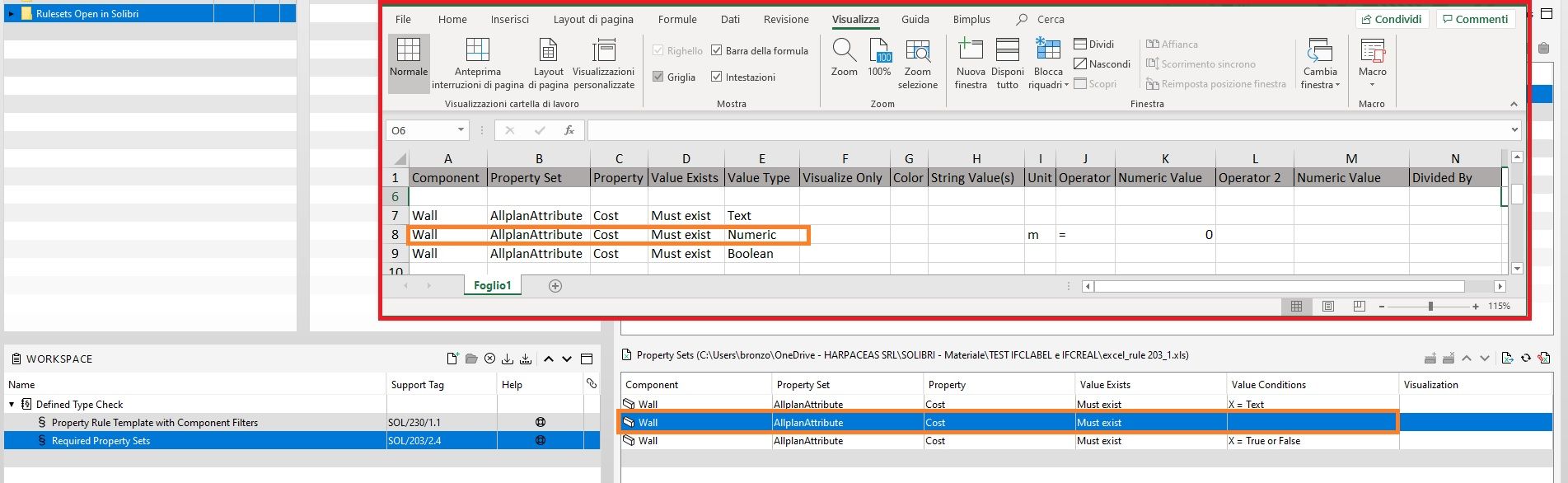
@Solibrians is there a guide on how to write the excel file so that all the possible values are read by the rule? -
@lasse-lindqvist yes, I tried to do it but nothing changes … also the “update imported data” still does not work …
-
@paola-bronzo said in Import Excel Worksheet - Rule#203:
@Solibrians is there a guide on how to write the excel file so that all the possible values are read by the rule?
@lasse-lindqvist Yes, that would be great.
yes, I tried to do it but nothing changes … also the “update imported data” still does not work …
@paola-bronzo
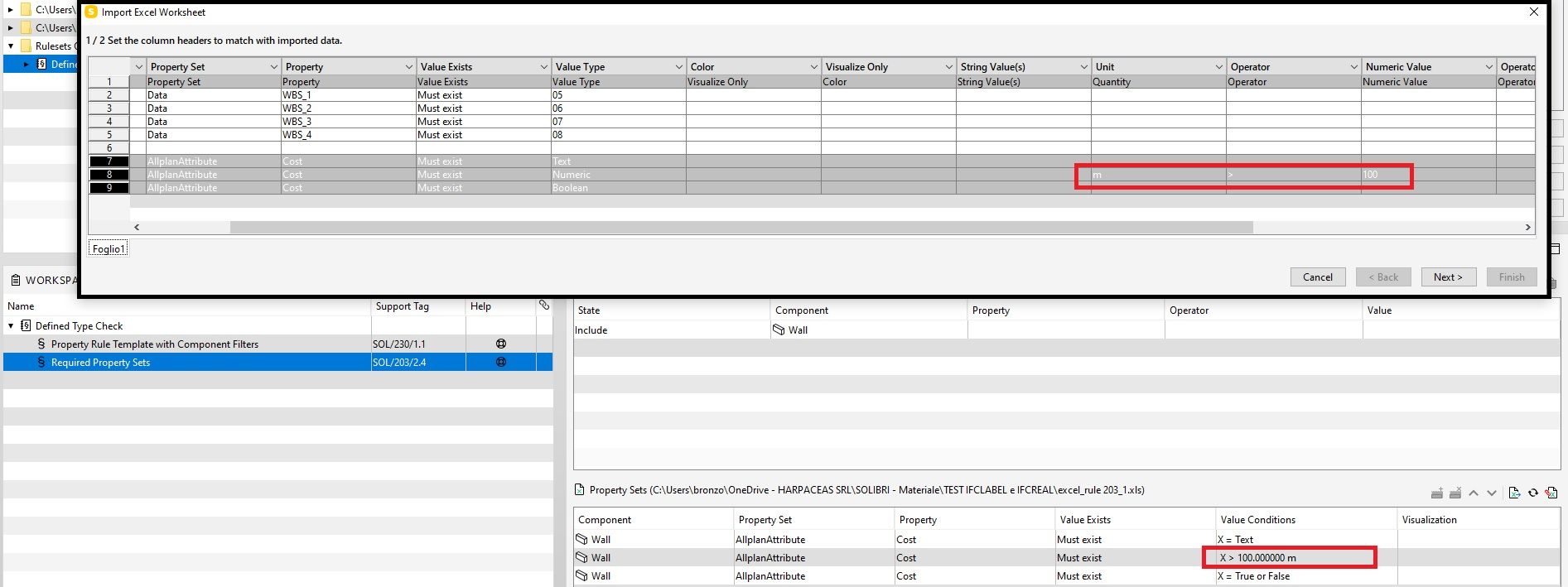
Did you make sure the headers are all matching - at least when using units like m or m2, the full line should load correctly and then you are able to update …

-
With Units it’s working as shown above, but what is the secret symbol for no unit now?
Afaik it’s not “”, " ", “*”, “-”, “_”, … -
Ok, let’s see if we also find out more about the lost symbol for no units.
In the meantime, a note about consistency and UX, as your table brought light into another very confusing thing.
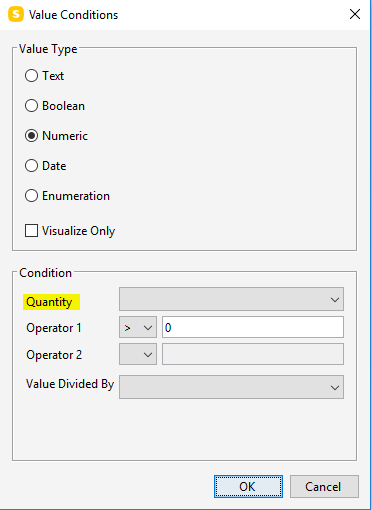
@Solibrians Why is the import drop down menu header called “Unit” whilst in the UX dialog it’s clearly labeled with “Quantity”? This is confusing. Probably just a legacy thing, but still.

-
@lasse-lindqvist
With Units it’s working as shown above, but what is the secret symbol for no unit now?
Afaik it’s not “”, " ", “*”, “-”, “_”, …Would be great to learn more about it as it still is a bit of a mystery and I have not yet found it out on my own …
-
Hello!
This has been fixed in Solibri 9.12.7. Please try out the new version and let us know how it feels!
Kind regards,
Toni on behalf of the Solibri team -
@Solibrians Is there a guide how to write the excel file?
-
Here is a XLSX that has a picklist/cheatsheet that you can use to copy/paste cells from to your required property sets sheet along with providing hints:
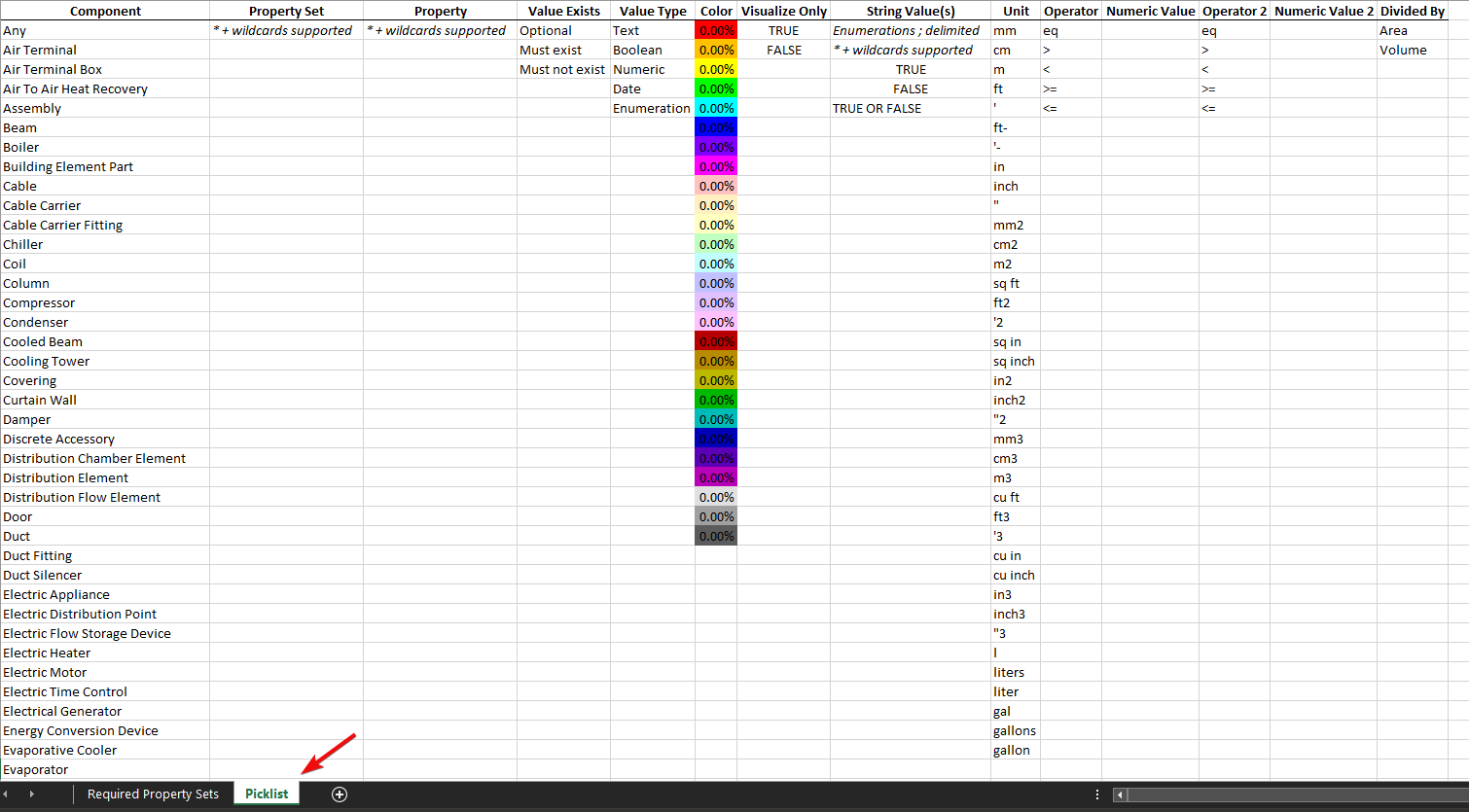
Required_Property_Sets_Picklist.xlsx
Some things things to note:
- You can use asterisks and question mark wild card characters in your pset, property, and property values.
- There are many ways to specify units (even gallons for volumes), and it should convert to your File > Settings > Units that you have set.
- To set the True, False, True or False value for a boolean property, it goes in the “String Value” column
- You can use any color you want (the picklist has some standard ones), and the percent is how transparent. NOTE: XLS will limit the colors so its better to use XLSX. NOTE: You see the colors in the Rule Tools.
- Use a semicolon to separate an enumeration.
- For the equal numerical operator, use ‘eq’. You can NOT use equals sign (=), though you can use >= and <=
Example :


-
 J john.lipp referenced this topic on





Copyright © 2025 Solibri Inc. | Powered by NodeBB